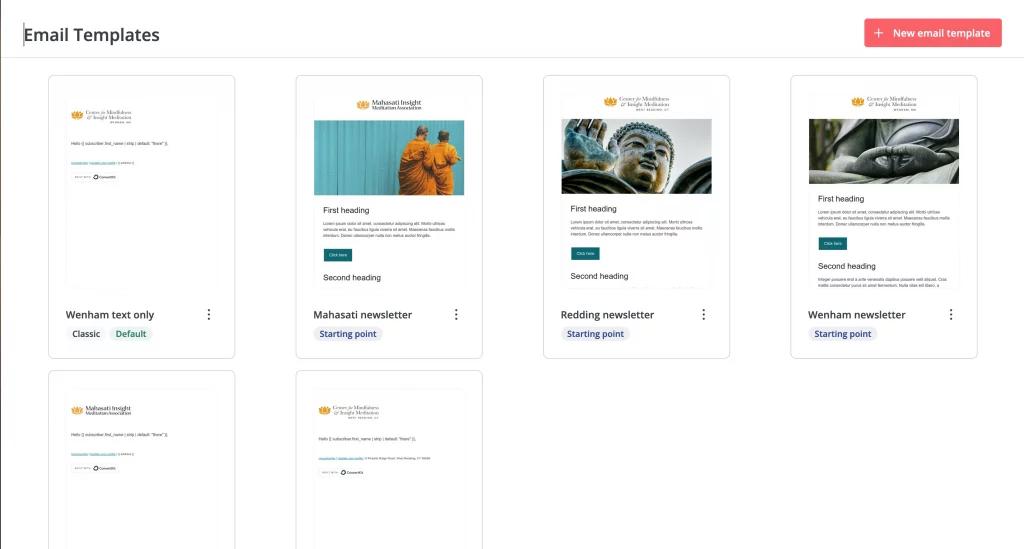
We’ve created six templates for your ConvertKit email broadcasts: a text-only template for each center and a newsletter template for each.
Note
ConvertKit provides extensive documentation for all of its features. For help with learning the email editor, start here.
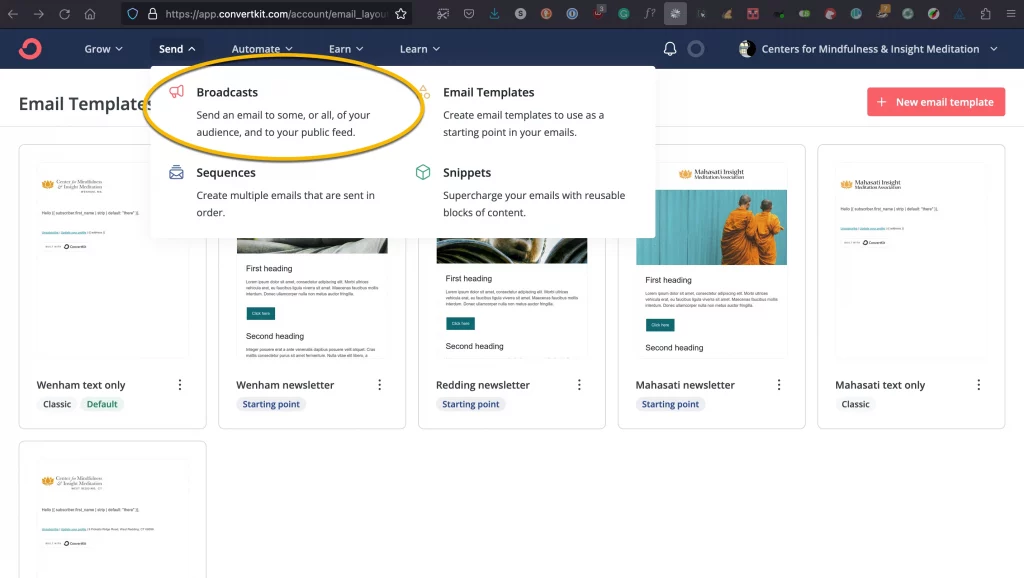
Go to the ConvertKit dashboard and choose Send > Broadcasts.
This brings you to the broadcasts page, where you’ll select “new broadcast,” then the template you want to use.
Now, you edit the template, replacing the dummy content with yours.
Note that we’ve added buttons for your newsletter links that go to something on the website. This is how we track the effectiveness of your email broadcasts over time.
By default, the links are empty, indicated by a #, which means the link goes nowhere. You’ll need to go to the website and copy the URL of the page/program you’re linking to, and enter it in the URL field.
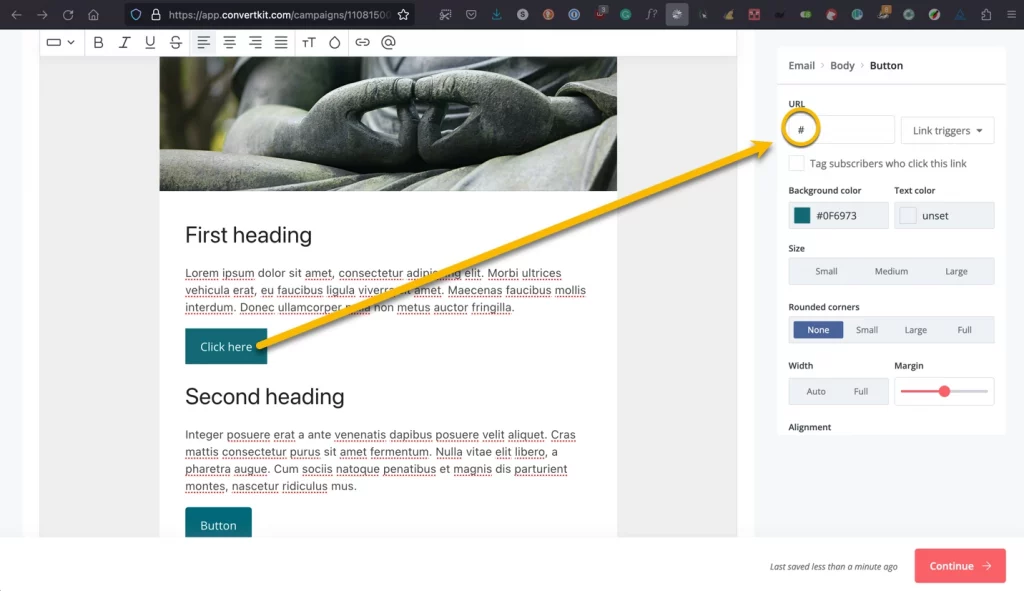
Note that the interface here gives you a couple of other options for each link: link triggers and tagging. Since CFMIM is not using automation at this point, we’ll go on to tagging. For now, we can apply a tag called “email link” to indicate that a user clicking on that link came to the site via one of your broadcasts.
Once you’ve finished your content and links, you can use ConvertKit’s filtering to choose who will receive your mailing.
The last step is reviewing and sending your mailing!