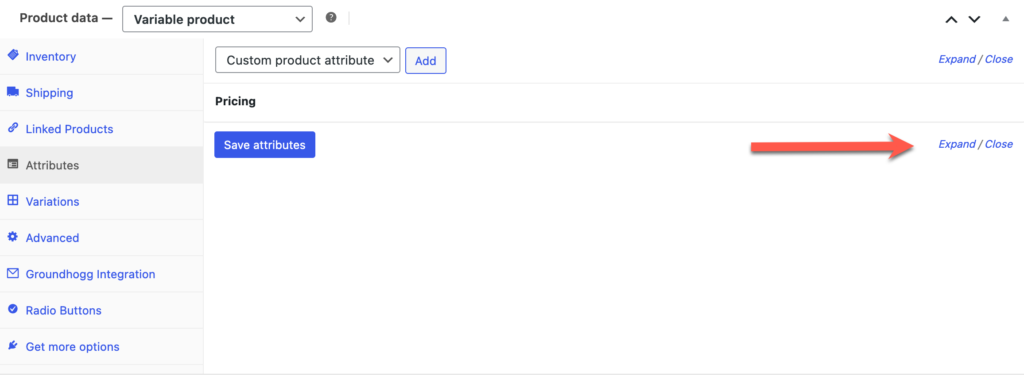
Select the Attributes tab, then Expand to reveal them.
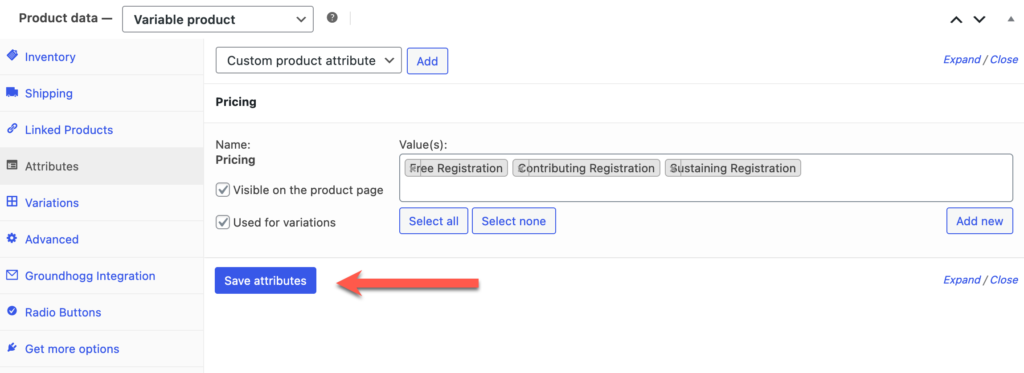
The default pricing attributes are already set. Make sure that “used for variations” is checked. Save the attributes, then select the Variations tab.
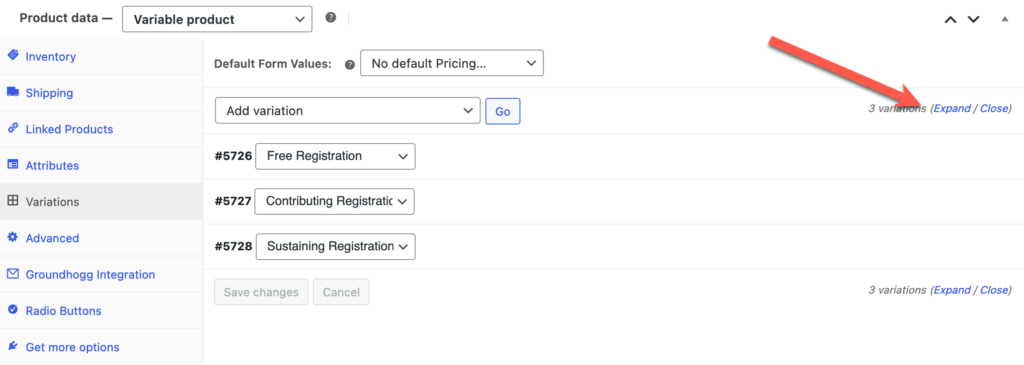
When you expand the variations section, you’ll see that they have already been created as well. Yay, templates!
Note
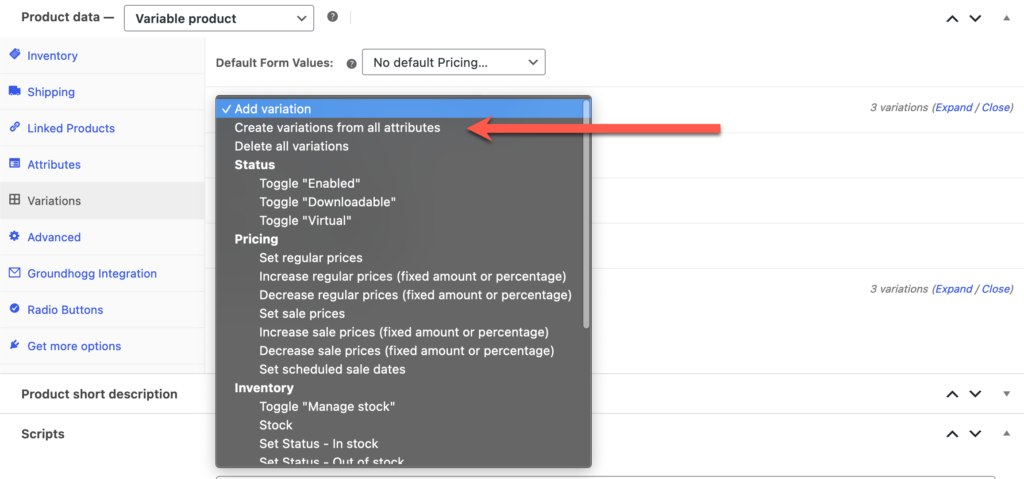
If you find that no variations have been created, just open the Add variation dropdown and select Create variations from all attributes.
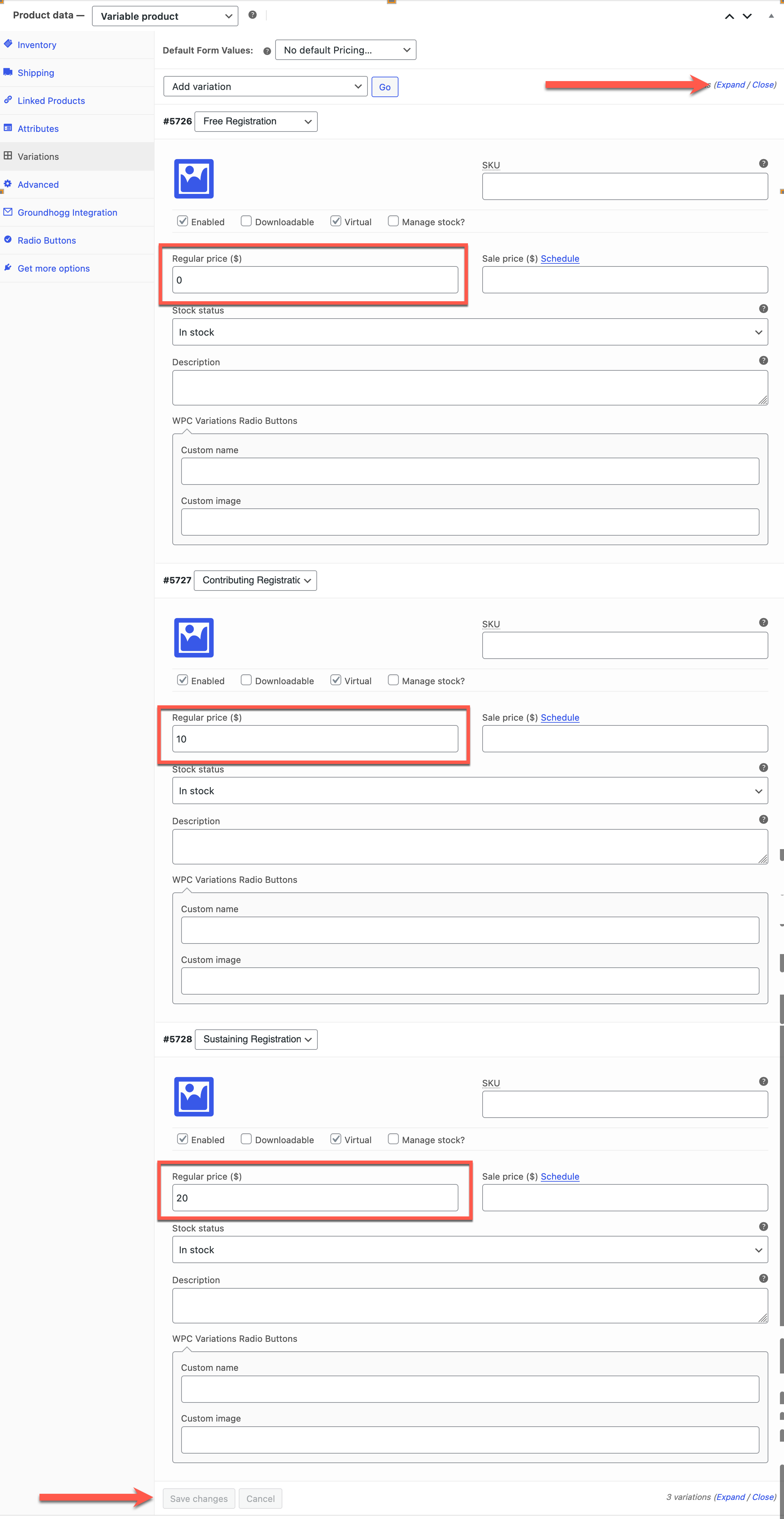
Expand the variations list, and edit the pricing for each variation. Don’t forget to save your changes using the button at the bottom of the variations dialog.
Note
If you look at a product on the front end and see that there is no inventory, or no way to select a price, it’s because you failed to save your changes at the bottom of the variations dialog before you updated the program at the top of the screen.
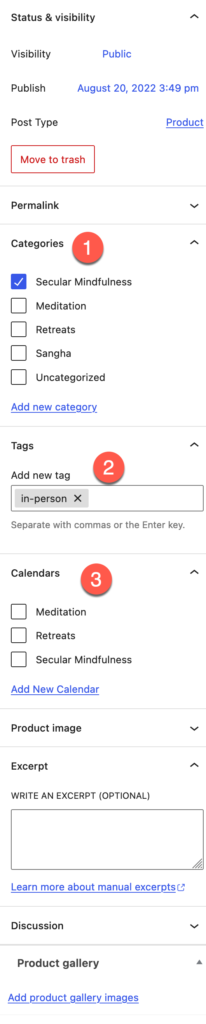
In the right-hand column, make sure you indicate the new program’s category (or categories), in-person or online tag, and the calendar(s) on which it appears.